YouTube Download Slow? Use VIP Fast Download
Use VIP Fast Download for an eligible YouTube video when a longer or higher-quality file takes time to download.
YouTube Download Slow? Use VIP Fast Download
Long YouTube videos and higher-quality streams create larger files, so a normal download may take longer to start or finish. Once TapSave has parsed a public YouTube URL, an eligible VIP member can select VIP Fast Download beside the video resource to use the VIP download route.
Use the right option
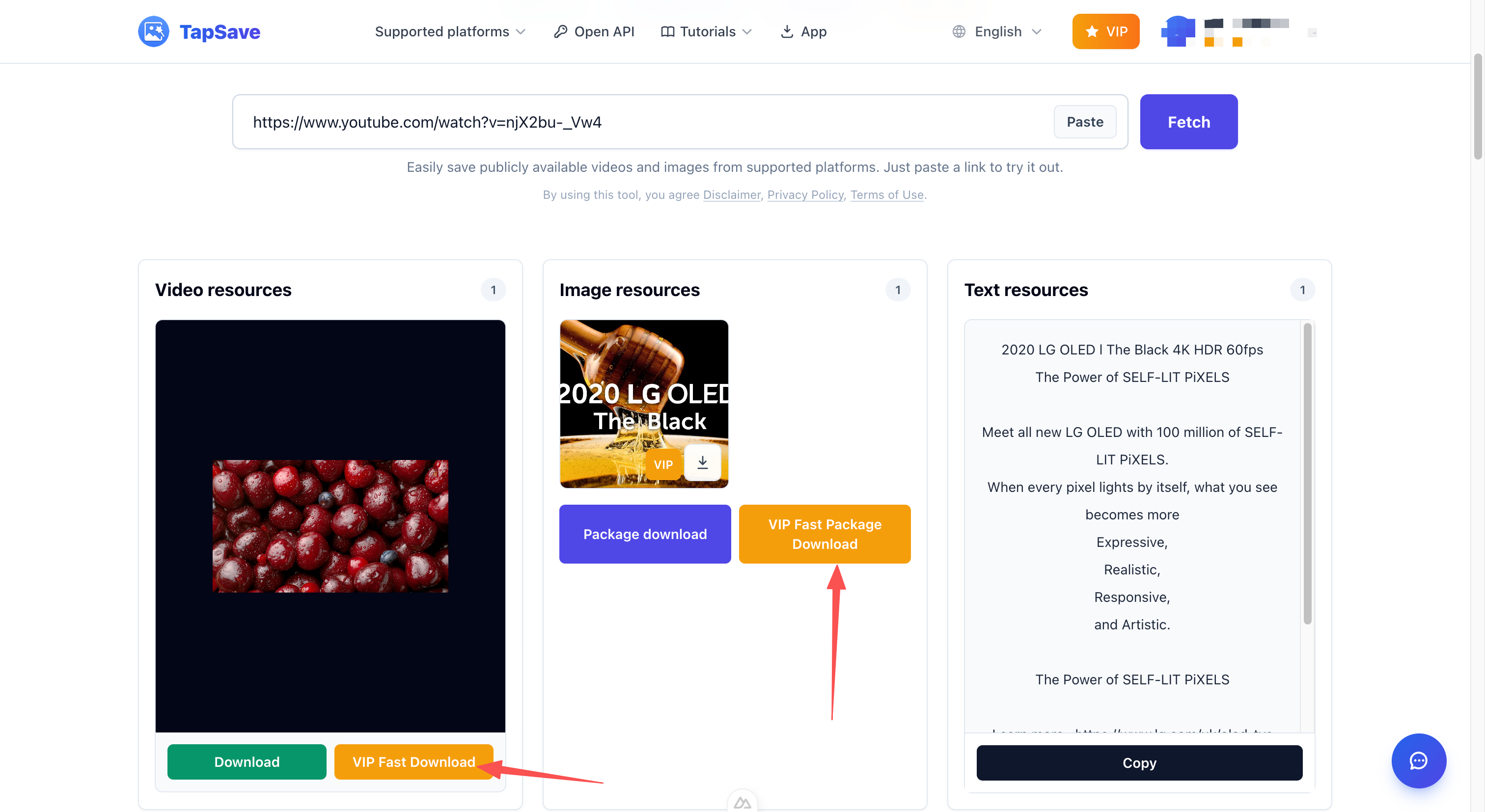
For a YouTube video, select VIP Fast Download under the video card. VIP Fast Package Download is for a set of parsed image resources, rather than a single long-form video.
Steps
- Copy the public YouTube video or Shorts URL.
- Paste it into TapSave YouTube Downloader and select Fetch.
- Choose the available video quality, then select VIP Fast Download.
- Let the browser save the downloaded file.
The button appears for eligible VIP accounts. Availability can vary with the public source and the parsed resource.
Continue with TapSave
Open the matching downloader or continue with a related browser tool.
More Tutorials
YouTube videos and Shorts Open API Integration Guide
Use the TapSave Open API to parse a public YouTube videos and Shorts link and handle the returned media resources in your application.
YouTubeHow to Download YouTube Shorts Videos
Save public YouTube Shorts with TapSave. Available formats and quality depend on the source and parsing result.
YouTubeHow to Download YouTube Videos and Shorts
Save public YouTube videos and Shorts with TapSave. Available formats and quality depend on the source and parsing result.
YouTubeHow to Download YouTube Videos with Sound: Avoid Silent Files
Learn why some YouTube downloads have no sound and how to use TapSave to choose an available video download option with audio.