How to Download YouTube Videos with Sound: Avoid Silent Files
Learn why some YouTube downloads have no sound and how to use TapSave to choose an available video download option with audio.
How to Download YouTube Videos with Sound: Avoid Silent Files
If you searched for how to download a YouTube video with sound, you may have already seen the common problem: the downloaded file has a picture, but no audio when it plays. That does not always mean that your phone or media player is broken. Often, a downloader retrieved a video-only stream or could not combine the available video and audio streams correctly.
TapSave parses public YouTube video and Shorts links and shows the media options currently available for download. When the parsed result includes an available audio track in a complete video option, the downloaded file keeps its sound for personal offline viewing. Only save public content that you have the right to save.
Why do some downloaded YouTube videos have no sound?
YouTube can deliver picture and audio as separate media streams. A downloader may retrieve only the picture stream, or it may not correctly process the video and audio streams together. The result is a file that looks normal but plays silently.
Sound may also be unavailable for other reasons:
- The original video has no audio track, or its creator muted the audio.
- Copyright, regional, or platform restrictions prevent a media stream from being returned.
- The video is private, deleted, restricted, or temporarily unavailable.
- Your player does not support the file's actual audio or video codec.
For that reason, do not rely on a filename extension alone. Whether sound is available depends on the original video and the options returned when TapSave parses the link.
Download a YouTube video with sound using TapSave
1. Copy a public YouTube link
Open a regular YouTube video or a YouTube Short. Select Share and then Copy link. On desktop, you can also copy the complete URL from your browser's address bar.
2. Paste the link into TapSave
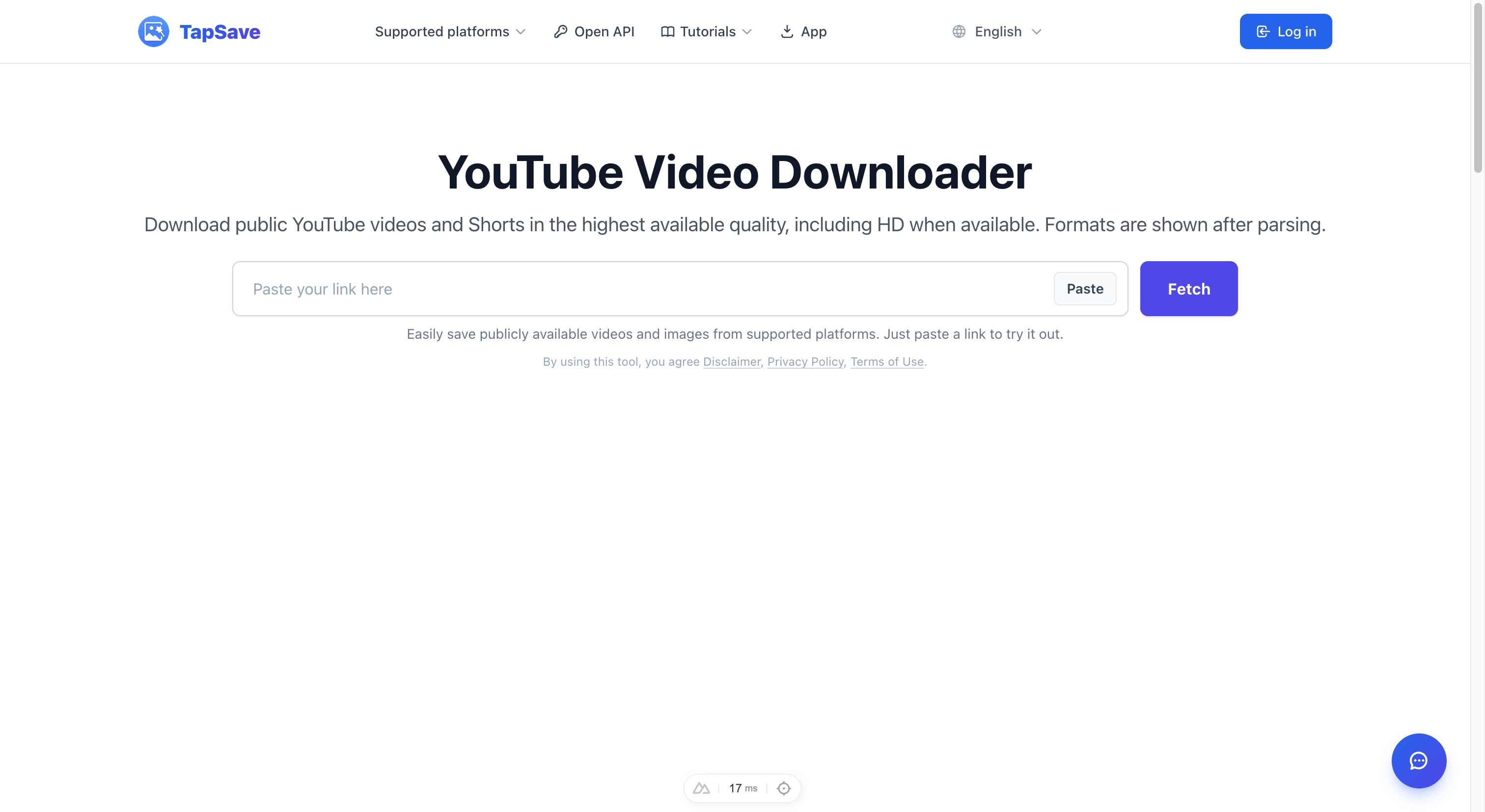
Open the TapSave YouTube Video Downloader, paste the URL into the input field, and start parsing. TapSave reads the media currently returned for that public link.
3. Choose an available complete video option
From the parsed results, choose a video download option that is actually available on the page. Available formats, resolutions, and audio tracks depend on the source video and the result returned by the platform at that time.
Do not assume that HD or MP4 by itself guarantees audio. The important part is choosing a complete video download option in the current parsing result that includes an available audio track.
4. Play the file after download
After downloading, play the file with your device's default player. If the video has picture but no sound, check the following:
- Make sure your device media volume is not muted.
- Confirm that the original YouTube video has sound.
- Try another widely used media player.
- Parse the link again in TapSave and check whether another video option is currently available.
Frequently asked questions
Will every YouTube download from TapSave have sound?
TapSave displays media that is available in the parsing result. A complete video option keeps sound when the original public video has an available audio track and the platform returns the relevant media stream. Sound cannot be guaranteed for private or restricted content, silent source videos, or results where no usable audio track is returned.
Why can the result for the same video change?
The formats, resolutions, and audio tracks returned by a platform can vary because of region, rights restrictions, source versions, or platform changes. Always use the options shown after the current parse rather than relying on a previous result.
Can I download YouTube Shorts with sound?
Yes. Use the same steps with a public Shorts link. The availability of an audio track, format, and quality still depends on the current parsing result.
Is downloading YouTube videos with sound legal?
Only save public content you have permission to save, such as content you own or content the rights holder allows you to download for personal study or offline viewing. Follow copyright rules and YouTube's applicable terms. Do not redistribute or use downloaded content commercially without permission.
Summary
To avoid a silent YouTube download, focus on the media options actually available for the public link rather than claims from a generic downloader. Paste the link into TapSave, select an available complete video option with audio, and play the downloaded file once to verify it. You can start with the TapSave YouTube Video Downloader.
Continue with TapSave
Open the matching downloader or continue with a related browser tool.
More Tutorials
YouTube Download Slow? Use VIP Fast Download
Use VIP Fast Download for an eligible YouTube video when a longer or higher-quality file takes time to download.
YouTubeYouTube videos and Shorts Open API Integration Guide
Use the TapSave Open API to parse a public YouTube videos and Shorts link and handle the returned media resources in your application.
YouTubeHow to Download YouTube Shorts Videos
Save public YouTube Shorts with TapSave. Available formats and quality depend on the source and parsing result.
YouTubeHow to Download YouTube Videos and Shorts
Save public YouTube videos and Shorts with TapSave. Available formats and quality depend on the source and parsing result.